Getting Started
Add and Verify Your Domain
Learn how to add your website to ShowUpInAI and verify domain ownership by hosting a verification file or setting up a redirect.
Before ShowUpInAI can submit your URLs to Bing (so they can show up in ChatGPT and co), you need to add your domain and verify that you own it. There are two verification methods: hosting a file at your domain root (recommended) or setting up a redirect for platforms that don't support static files.
Add your domain
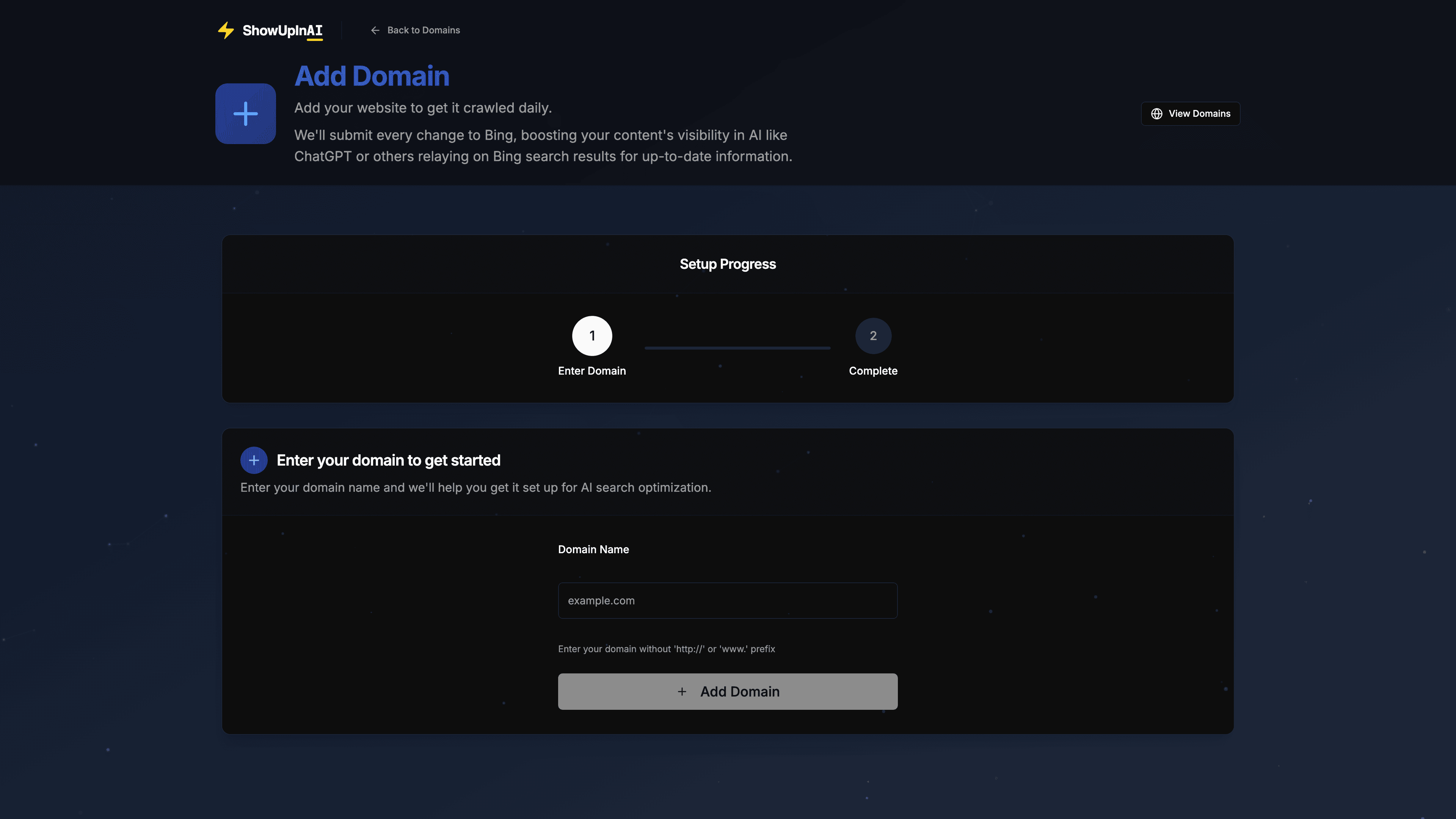
Open the dashboard
Go to your ShowUpInAI dashboard and click "Add Domain".
Enter your domain
Type your domain (e.g., yourdomain.com). Don't include https:// or a trailing slash.
Choose a verification method
Select either Host File or Redirect. The Host File method is recommended if your platform supports it.
Complete the verification steps
Follow the instructions for your chosen method (see below).
Click "Recheck" in the dashboard
ShowUpInAI checks for your verification file and confirms ownership.
Method 1: Host a verification file
This is the simplest method. You create a plain text file and place it at the root of your domain.
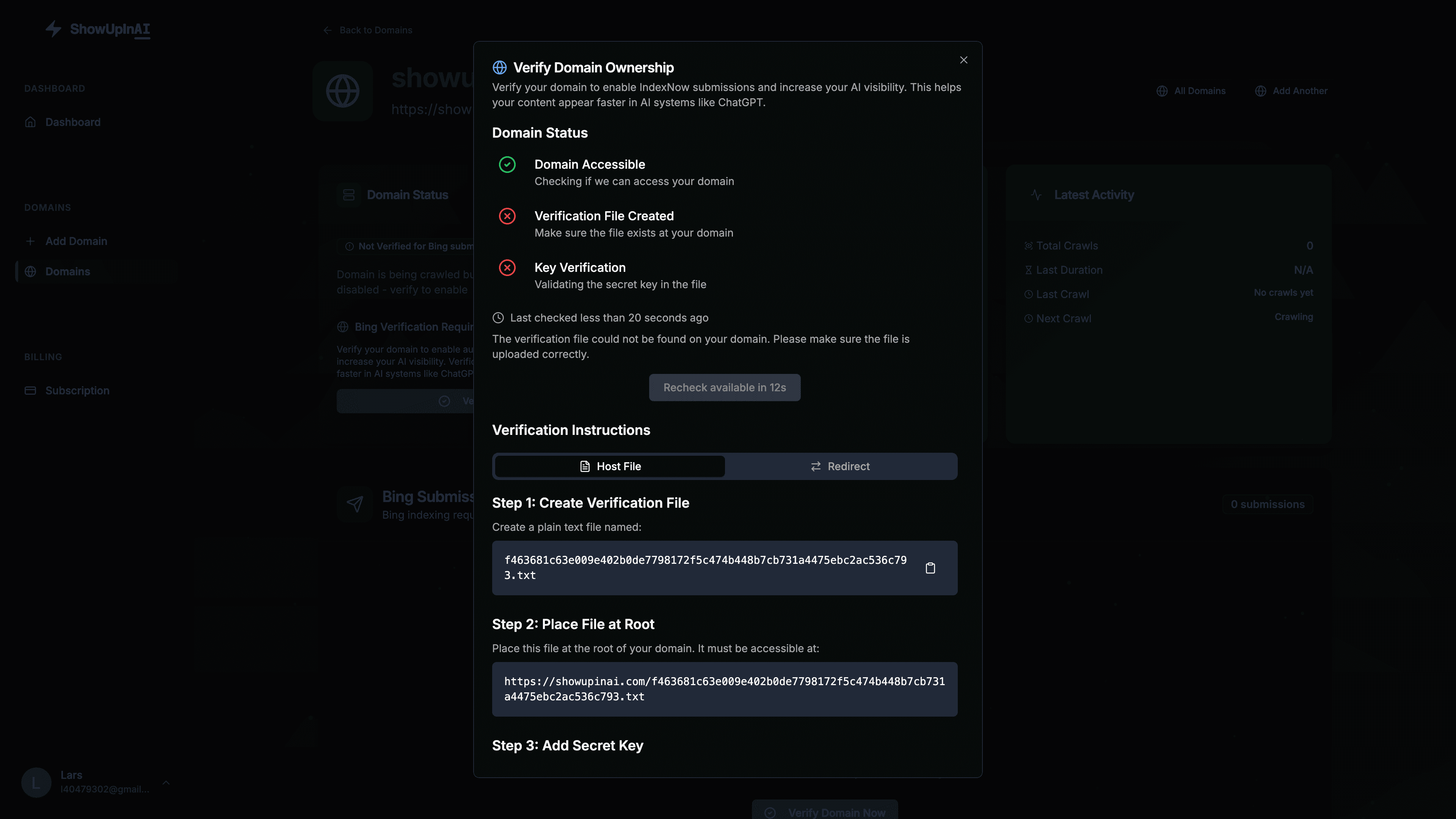
Create the verification file
Create a plain text file named after your secret key — for example, abc123def.txt. Your dashboard shows the exact file name.
Add your secret key as the file content
The file must contain only your secret key value on the first line. No extra spaces, no blank lines, nothing else.
Upload the file to your domain root
Place the file so it's accessible at https://yourdomain.com/abc123def.txt (using your actual key).
Click Recheck in the dashboard
ShowUpInAI fetches the file, reads the key, and confirms ownership.
File name:     YOUR_SECRET_KEY.txt
File content:  YOUR_SECRET_KEY
Accessible at: https://yourdomain.com/YOUR_SECRET_KEY.txt
Where to find your secret key
Your secret key and file name are shown in the verification dialog after you add your domain. Use the copy buttons to avoid typos.
Method 2: Set up a redirect
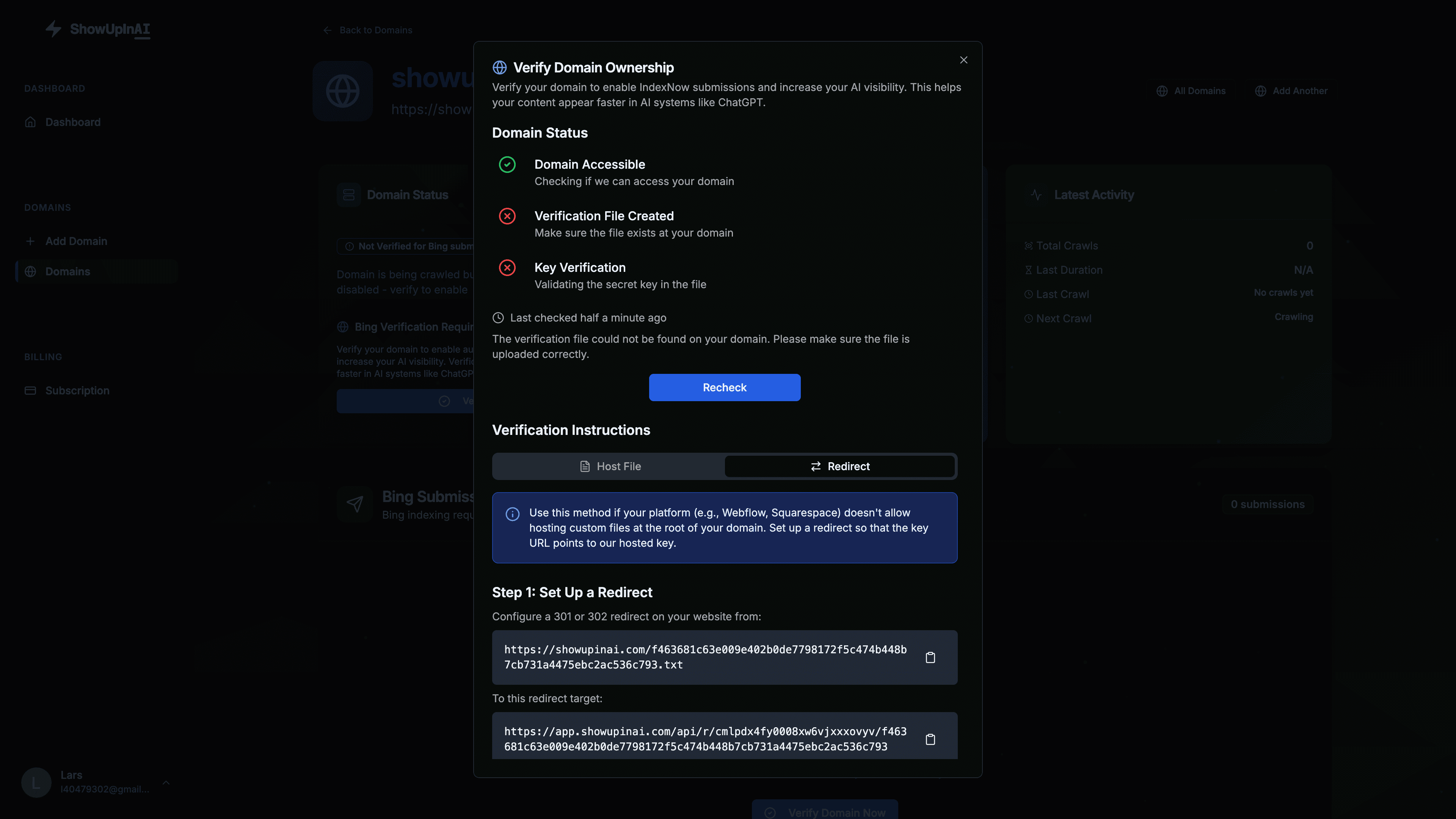
Use this method if your platform (e.g., Webflow, Squarespace, Featurebase) doesn't allow hosting custom files at your domain root. Instead of hosting the file yourself, you redirect the verification URL to ShowUpInAI's hosted key endpoint.
Copy the source and target URLs
In the ShowUpInAI dashboard, switch to the "Redirect" tab in the verification dialog. You'll see the source URL and the redirect target.
Set up a 301 or 302 redirect
Configure a redirect on your website or DNS provider so that the source URL redirects to the target URL.
Click Recheck in the dashboard
ShowUpInAI follows the redirect and confirms the key is served correctly.
Redirect from: https://yourdomain.com/YOUR_SECRET_KEY.txt
Redirect to:   https://app.showupinai.com/api/r/YOUR_DOMAIN_ID/YOUR_SECRET_KEY
Platform-specific guides
See our integration guides for step-by-step redirect instructions for Webflow and Featurebase on Cloudflare.
Troubleshooting
Verification fails with Host File:
- Make sure the file is at the exact root URL — not inside a subfolder.
- The file must contain only the secret key. No extra spaces, blank lines, or HTML.
- Check that the file name matches exactly (including the
.txtextension). - View the URL directly in your browser to confirm it returns the key as plain text.
Verification fails with Redirect:
- Confirm the redirect is active by visiting the source URL in your browser — it should end up showing your secret key.
- Both 301 and 302 redirects are supported.
- Make sure the redirect target URL includes your correct domain ID and secret key.
Domain already added by another organization:
- Each domain can only be verified by one organization. Contact support if you believe this is an error.