Integrations
Featurebase on a Custom Domain (Cloudflare)
Set up a Featurebase feedback board on a custom subdomain with Cloudflare, including the redirect rule needed for ShowUpInAI domain verification.
If you use Featurebase (a feedback and roadmap tool) on a custom subdomain like feedback.yourdomain.com, and you want to verify that subdomain in ShowUpInAI, you need a Cloudflare redirect rule. This guide walks through the full setup.
Cloudflare required
This guide assumes your domain is managed on Cloudflare. Keep Cloudflare proxy (orange cloud) enabled — our custom redirect rule relies on it.
Why a redirect rule is needed
Featurebase handles all requests to your custom domain. When ShowUpInAI tries to verify ownership by requesting feedback.yourdomain.com/abc123.txt, Featurebase intercepts that request and returns a 404 — it doesn't know about your verification file.
The Cloudflare redirect rule intercepts that specific verification path before the request reaches Featurebase, and redirects it to ShowUpInAI's verification endpoint instead.
Setup steps
Configure Featurebase custom domain
In the Featurebase app settings, find "Custom Domain" and enter your subdomain (e.g., feedback.yourdomain.com).
Add a CNAME record in Cloudflare
In Cloudflare DNS, add a CNAME record pointing your subdomain to Featurebase. Keep the proxy enabled (orange cloud ON).

Wait for Featurebase to confirm
Featurebase usually activates the custom domain within a few minutes. Check the Featurebase settings page for confirmation.
Get your ShowUpInAI verification details
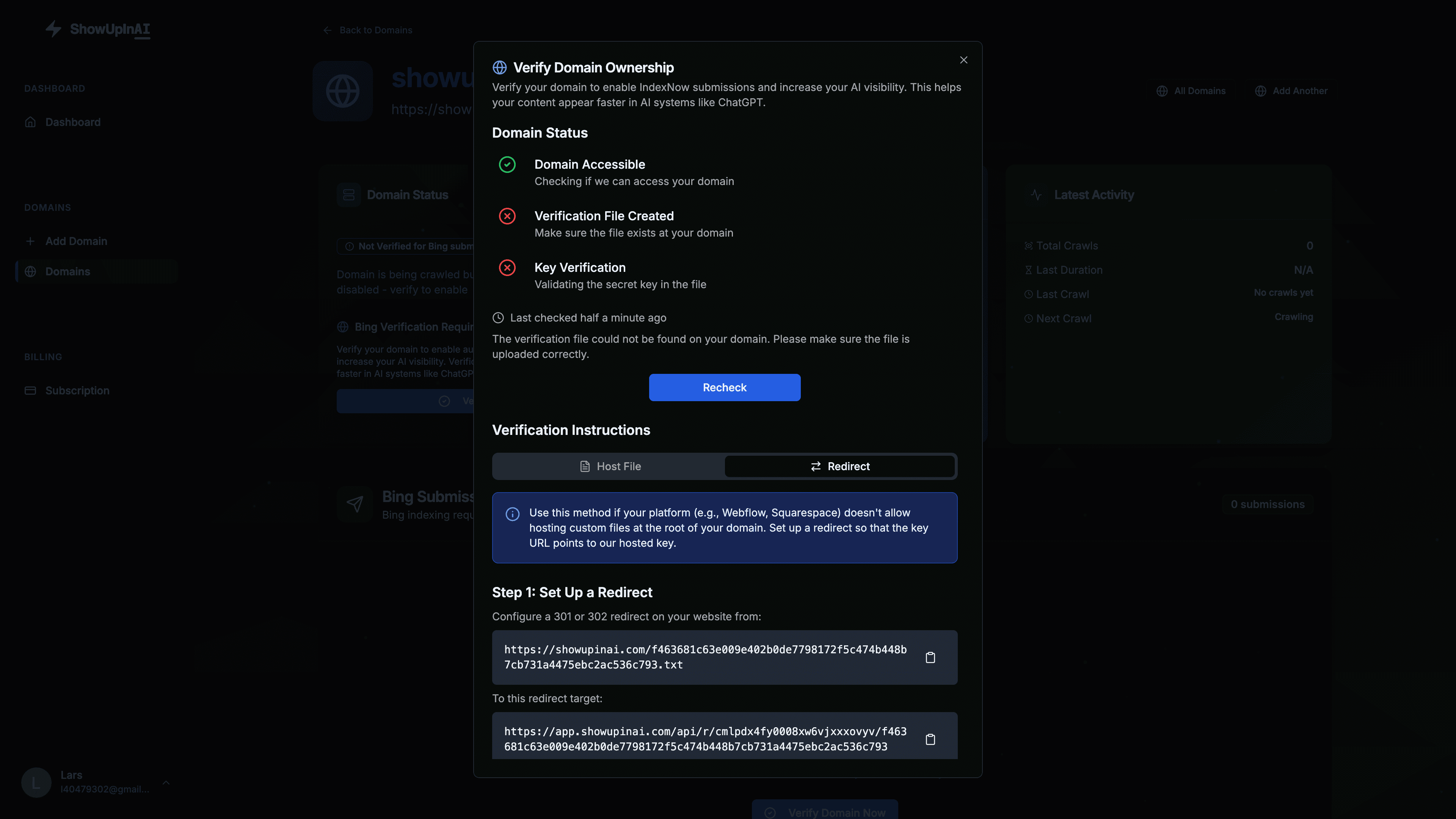
In the ShowUpInAI dashboard, go to your domain verification settings. In the "Redirect" tab copy the source `https://yourdomain.com/abc123.txt` and destination `https://app.showupinai.com/api/r/<domainId>/<key>`.
Create a Cloudflare redirect rule
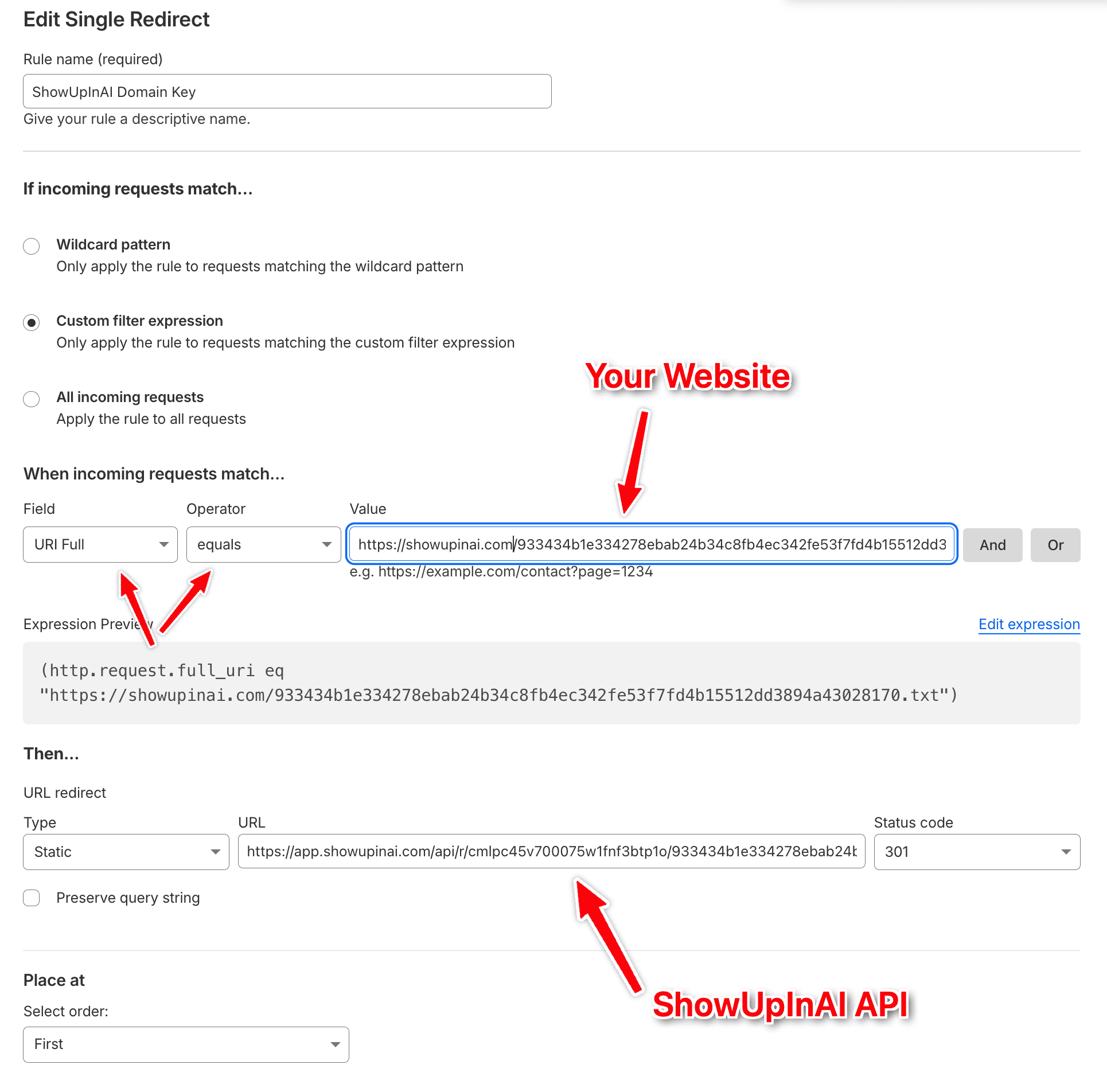
In Cloudflare, go to Rules → Redirect Rules → Create rule. Set: When hostname equals feedback.yourdomain.com AND URI path equals /<your-verification-key>.txt, then static redirect to https://app.showupinai.com/api/r/<domainId>/<domainKey> with status 301.
Verify in ShowUpInAI
Save the Cloudflare rule, then click "Verify" in your ShowUpInAI dashboard. The redirect is followed and verification completes.