Integrations
Webflow + IndexNow Setup
How to verify your Webflow domain in ShowUpInAI using a 301 redirect to enable IndexNow submissions.
Webflow doesn't let you host arbitrary static files at your domain root. Since ShowUpInAI needs to verify a key file at a path like yourdomain.com/abc123.txt to make Bing submissions work, you can set up a 301 redirect in Webflow that points to ShowUpInAI's verification endpoint instead.
Webflow site plan required
301 redirects are configured in Webflow under Site Settings → Publishing. This feature requires a site plan on the Webflow project.
Setup steps
Get your ShowUpInAI verification details
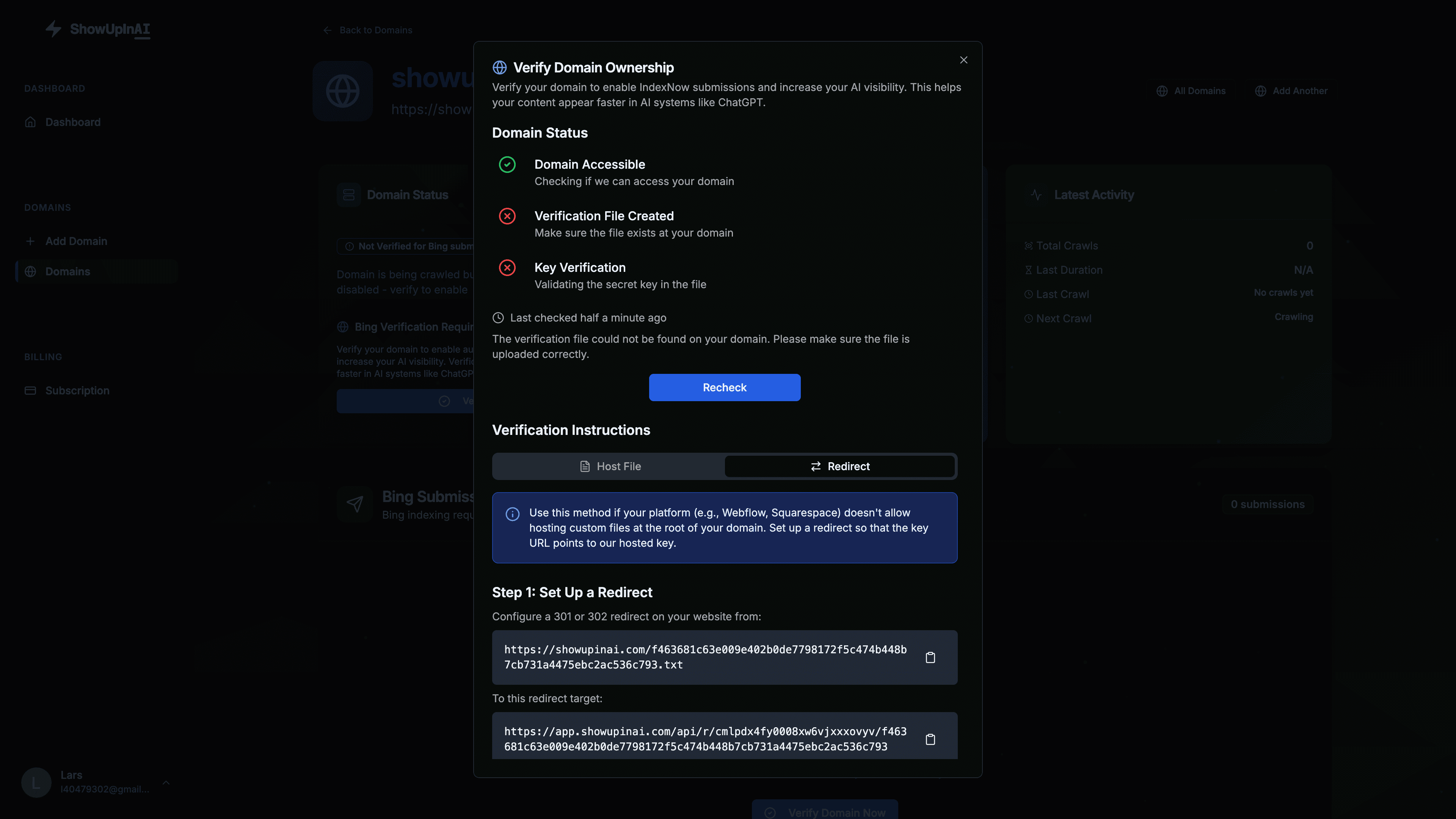
In the ShowUpInAI dashboard, go to your domain verification settings. In the "Redirect" tab copy the source path (e.g. /abc123.txt) and the destination URL (e.g. https://app.showupinai.com/api/r/<domainId>/<key>).
Add a 301 redirect in Webflow
In your Webflow project, go to Site Settings → Publishing → 301 Redirects. Add a new redirect with the source path (e.g. /abc123.txt) and the ShowUpInAI destination URL as the target.
Publish your Webflow site
Publish the site so the redirect goes live. Webflow redirects only take effect after publishing.
Verify in ShowUpInAI
Back in the ShowUpInAI dashboard, click "Verify". The redirect is followed and verification completes.